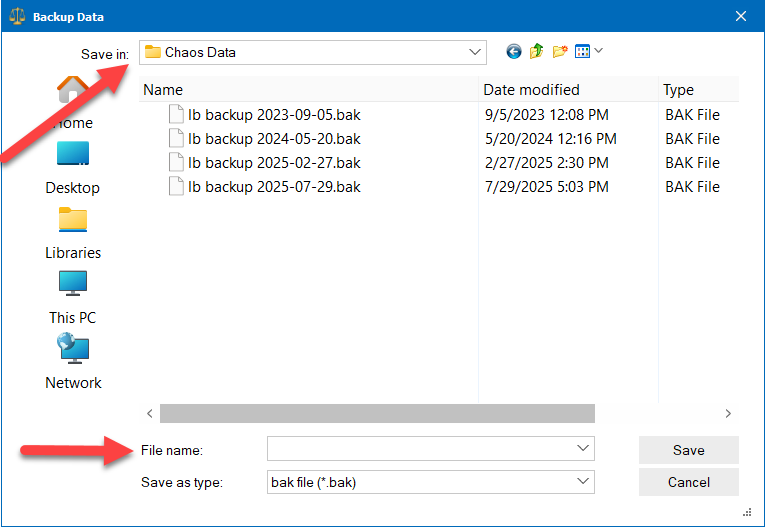
To start the Backup process, go to File and click Backup Data.
You will then get a window looking for both a location and a file name.
At the top of this backup window, Save In is showing where the new backup file is going to be saved. The middle section has a window showing any previous backup files saved to this same location. You can use the options the top or in the middle to change the Save In location to whatever you want.
Choosing an external USB drive can be safer long term in the sense that if your computer crashes, dies or is stolen, you could still have your external USB drive you kept in a safe place.
On the other hand, backing up to your local drive can be more convenient since you won't have to find and connect an external drive.
You might choose to use both external and local backup locations, with regular backups to the local drive and periodic backups to an external drive for extra safety.
After selecting a location, at the bottom of this window is a place for the backup file name. From the picture you can see an example of a naming system you might use, with lb backup then the date written year, month, day for easy file sorting. You can use whatever convention makes sense to you and if you make a backup for special purpose, you can use the file name to help remind you later why you made this particular backup today.
After entering a file name, click Save and the new bak Backup file will be made with a copy of your clients and billing data all packaged in one bak file.
If you need to restore the data from a Backup file, you can go to the File menu at the top left of the program, then click Restore data. You will then see a window where you can browse for and select the specific backup file you want to use to replace the current data.
Restoring data from a backup file always OVERWRITES the existing data. This means that the data will look just like it looked the day it was backed up, but it will also be missing, for better or worse, everything edited after that backup date.
Technical Note 1: If you also use one of our contact manager programs on this computer (such as Time & Chaos or Chaos Intellect), it is important to understand that restoring a Backup made by Legal Billing will REPLACE both your billing records 'Legal Billing.*' AND your Contact records 'Contacts.*' from the .bak file in the contact manager program too since they share the same contact/client list.
Technical Note 2: If you use our optional ChaosHost.com cloud service, there are more steps to restoring a backup since it is not just this one local copy of the data to replace. Our Tech Support department can give you the steps if needed.
This help article applies to Legal Billing 7 or newer