The type of information you enter in into our software is invaluable for "running your life". If something were to happen to your computer that might cause a data loss, you could have a significant problem. It is in your best interest to make backups on a regular basis to protect yourself from the unknown.
Backup is something you should use often to take a snapshot, if you will, of the way your data looks at this moment. Restore, on the other hand, is something you will use rarely or never, as it is something to resort to only when everything has gone wrong. Without a backup to work with, even restore can't help, so take advantage of this option to protect your data!
To make a fresh backup of your data, simply choose the Backup Data option from the File menu at the top left corner of our screen. You can also choose an option to have us remind you to backup when you exit the program.
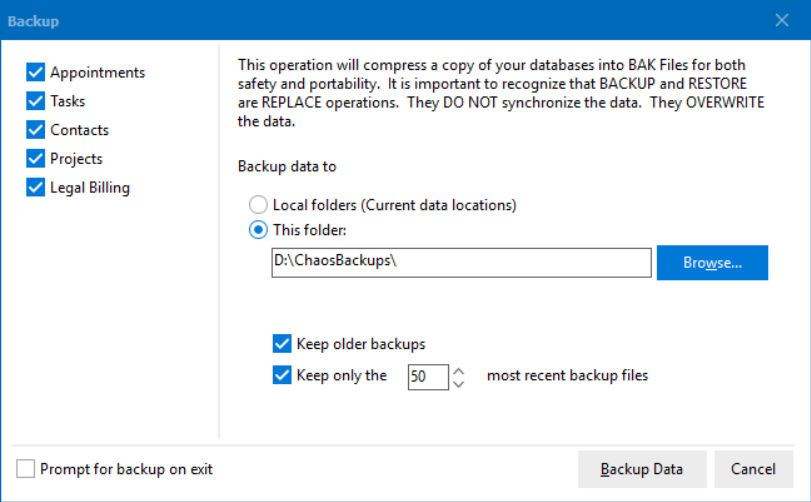
With many types of data stored in Time & amp; Chaos and Chaos Intellect, the Backup screen has check boxes for all the types of data that can be backed up. Usually you would want all of them checked, but it gives you the choice.
Next you choose the destination for the set of backup files to be saved to, "Local folders" or "This folder" with a browse button to pick exactly what location you want This Folder to be.
If you choose Local folders, the backup files will be put in the same location as the data files are kept in. This is quick and you don't have to spend time selecting a place but if something happens to your computer and your data, it happens to your backups too. Using This folder would let you browse to an external USB drive to backup to.
The backup screen does have some additional options at the bottom to choose to keep older backups and to limit the quantity of older backups kept (so if you backup often you don't fill up the storage drive).
Backup will compress each of its databases, give them a file extension of .bak and will store them in your chosen backup destination. The backup files will be named calendar.bak, contacts.bak, tasks.bak, and projects.bak for your Appointment Calendar, Contact Entries, Task Items, and Projects, respectively. If you also use our Legal Billing program in with the same clients/contacts, you may even see an extra check box to backup the Legal Billing data at the same time as it backs up the other data types, creating a billing.bak file.
You can make backups at any time, even while other users are working with the data on a network shared location!
When you restore, you will be given an option to indicate where your Intellect backup files are located. This could be in the Local Folder where the main data files are found or any location you can Browse to.
Restore is a REPLACE. It will completely roll back the clock to the way the data looked when the backup was made. This makes it great for disaster recovery or useful when transferring data to a new computer.
If you don't want to completely replace your current data, you could consider either making a new data folder as a completely separate location from your current data OR using the Advanced Backup Explorer on the File menu at the top left to find and restore select items instead of a complete data set.
Intellect users: Please note that email is NOT one of the backup options. Intellect does not store your email in databases like these other types of data.
When you want to make a protective copy of all your email history, you'll require significantly more time and storage than this backup option offers for the other types of data in this program. Instead of using Backup data, you should look at the option for Folder Synchronization, which can copy your complete email folders to a removable drive.
If you use our optional ChaosHost.com service in combination with Chaos Intellect or Time & Chaos, restoring data is a bit more complicated because there are more copies of the data to replace than just on this one computer you are using. Our Tech Support department can help with the full steps needed to restore to all the computers you sync with, not just this one local copy.
Here is a video from our Chaos University video series that shows how this backup feature works:
This help article applies to Intellect 4 or newer, Time & Chaos 8 or newer, and Chaos Free